Calculators
A visual guide to choosing and using global and leaf-specific calculators.
Which calculator do you need?
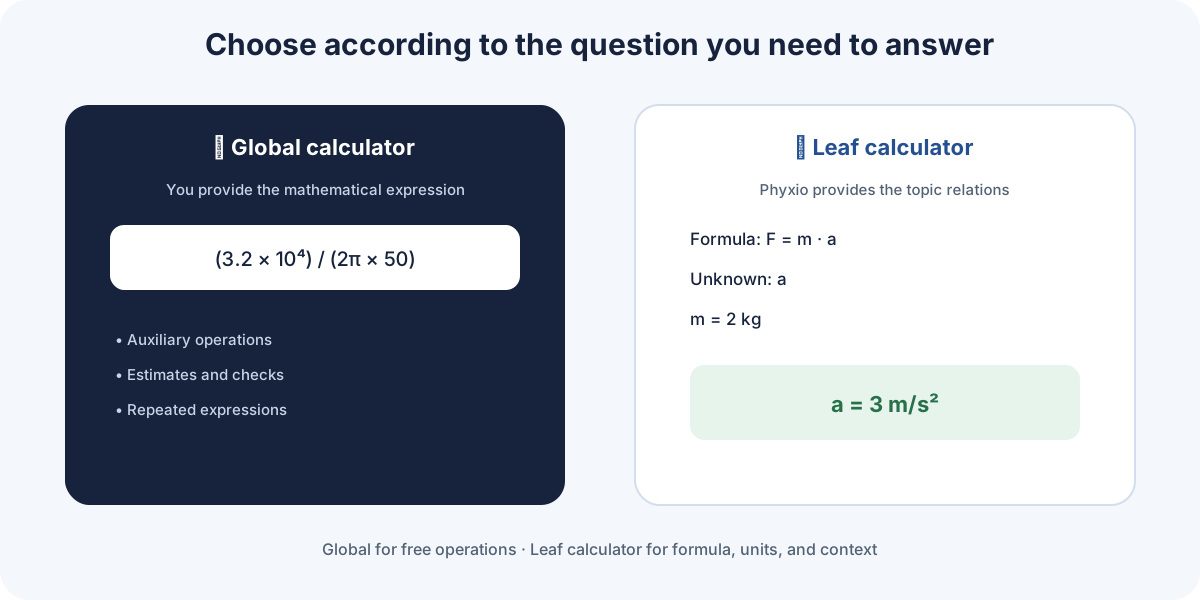
Phyxio distinguishes between a global calculator for quick mathematical operations and leaf calculators, which know the formulas, variables, and restrictions of a physical topic.
| Your situation | Appropriate option |
|---|---|
| You already know the mathematical operation | Global calculator |
| You need to convert units | Converter |
| You need a reference physical value | Constants |
| You want to apply a topic formula | The leaf's Calculator tab |
| You do not know which physical relation to use | Theory, Models, or Phyxio AI before calculating |
The essential difference
The global calculator evaluates an expression you enter. A leaf calculator starts from a documented physical relationship, lets you choose the unknown, and organizes known data. Neither can decide by itself whether the chosen model describes the problem well.
Before entering numbers
Identify the unknown quantity, physical system, assumptions, and data units. If you cannot yet explain what every quantity represents, return to the leaf's Theory or Quantities tab.
Calculation is one phase of reasoning. Choosing the physical relationship happens first.
Global calculator
Open the global calculator from the sidebar or the direct link. It is independent of the topic currently being viewed.
What you can enter
- arithmetic operations and parentheses;
- powers, roots, and supported functions;
- mathematical constants such as π and e;
- compound expressions using the usual order of operations.
Enter the complete expression before calculating and use parentheses whenever the grouping could be ambiguous. History keeps recent operations available for review or reuse.
When to use it
Use it for auxiliary calculations, estimates, quick checks, or repeating an operation with different values. If you are manually copying a complex physical formula, first check whether the relevant leaf has its own calculator.
What it does not provide
The global calculator does not know the physical meaning of each number, correct incompatible units, or validate model assumptions. An expression can be mathematically valid and still represent the problem incorrectly.
Leaf calculator
When a leaf contains operational formulas, a Calculator tab appears. This tool is built from the topic content and uses its quantity names, symbols, and relationships.
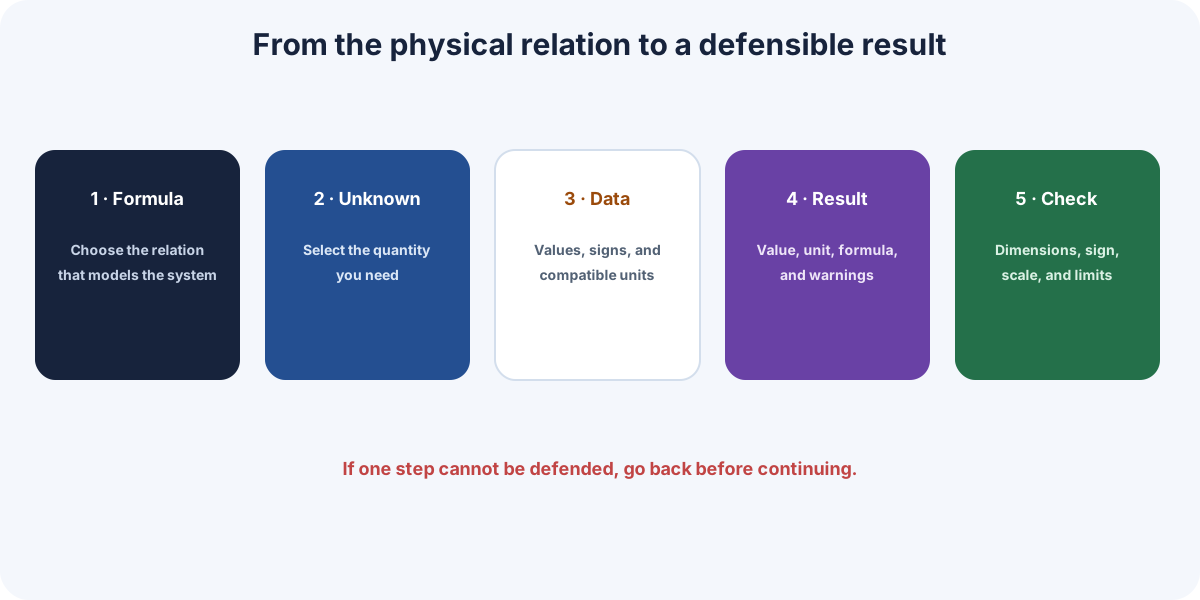
Usage sequence
- Choose the formula. Read its name and confirm that it matches the problem model.
- Select the unknown. The calculator arranges the fields around the quantity being sought.
- Enter known data. Supply each required value and review its unit.
- Calculate. Read the value, unit, formula used, and associated messages.
- Interpret. Decide what the sign, scale, and behavior mean.
Operational and reference formulas
Some expressions support direct rearrangement and calculation. Others are reference-only because they contain integrals, derivatives, implicit relationships, or operators that cannot be rearranged automatically and reliably. A “read-only” warning is not an error: it means that another method is required.
Connection with graphs
In compatible leaves, calculator values can feed a graph. Linked mode displays the calculated state; experiment mode separates the controls so other values can be explored freely.
Entering data and units
A physical datum consists of a value, unit, and meaning. Entering only the number can produce a numerically correct answer at the wrong scale.
Prepare the data
- Keep more digits during calculation than in the final result.
- Convert incompatible units beforehand with the converter.
- Distinguish prefixes:
mmay denote meter, whilemilli-means one thousandth. - Check whether angles are expected in degrees or radians.
- Preserve signs that represent direction, orientation, or difference from a reference.
Scientific notation
For very large or small quantities, use scientific notation and check the coefficient and power of ten separately. A prefix error can shift the result by several orders of magnitude even when all later arithmetic is correct.
Exact and measured data
Do not add precision that the data do not contain. Measurements have uncertainty and resolution; constants may provide more digits than required. The calculator operates on entered values, but the final presentation must respect the quality of the original data.
Before selecting Calculate, read each row as a sentence: “this quantity has this value in this unit.”
Reading results and warnings
The main number is only one part of the output. Also read the unit, formula used, meaning of the unknown, and every warning displayed by the calculator.
What to review on screen
| Element | Question to answer |
|---|---|
| Value | Does the scale look plausible? |
| Unit | Does it match the quantity being sought? |
| Sign | Does it represent direction, loss, growth, or a convention? |
| Formula | Is this actually the relationship you intended to apply? |
| Warnings | Is there a restriction, missing datum, or non-operational formula? |
Special results
A negative value is not automatically an error. Zero may be a physical solution or a sign of cancellation. An extremely large, infinite, or undefined result commonly indicates a denominator near zero, an invalid domain, or a model outside its useful range.
If the calculator cannot continue
Check empty fields, decimal separator, units, root or logarithm domains, and the selected unknown. If the formula is reference-only, consult Theory, Examples, or Phyxio AI to choose the appropriate procedure instead of forcing a rearrangement.
Checking a calculation
A calculator reduces arithmetic errors, but it cannot guarantee that the data, model, or interpretation are correct. Perform these checks before using the result.
Five-layer check
- Equation: confirm that it relates the problem quantities under the appropriate assumptions.
- Dimensions: verify that the final unit belongs to the quantity being sought.
- Scale: estimate the order of magnitude mentally and compare it with the result.
- Physical meaning: interpret sign, direction, and trend.
- Limiting case: test what happens if one datum is zero, doubled, or made very large.
Repeat by another route
For an important result, use a second check: a rough manual calculation, equivalent formula, graph, conservation principle, or known reference value. Two methods that share the same incorrect assumption may agree, so the model itself must also be reviewed.
Asking Phyxio AI for a review
Provide the chosen formula, data with units, and result, then ask: “Review my setup, units, sign, order of magnitude, and limiting case; do not merely repeat the operation.” Keep an independent check even when the answer sounds convincing.
A calculation ends when you can defend the result, not when a number appears on screen.