Using Phyxio
A visual reference guide to the Phyxio interface, navigation, tools, and personal workspace.
Start here
This is a reference guide: read it from beginning to end or open only the section you need. It contains no missions, exercises, or self-assessment. Its purpose is to help you recognize every Phyxio element and know where it leads.
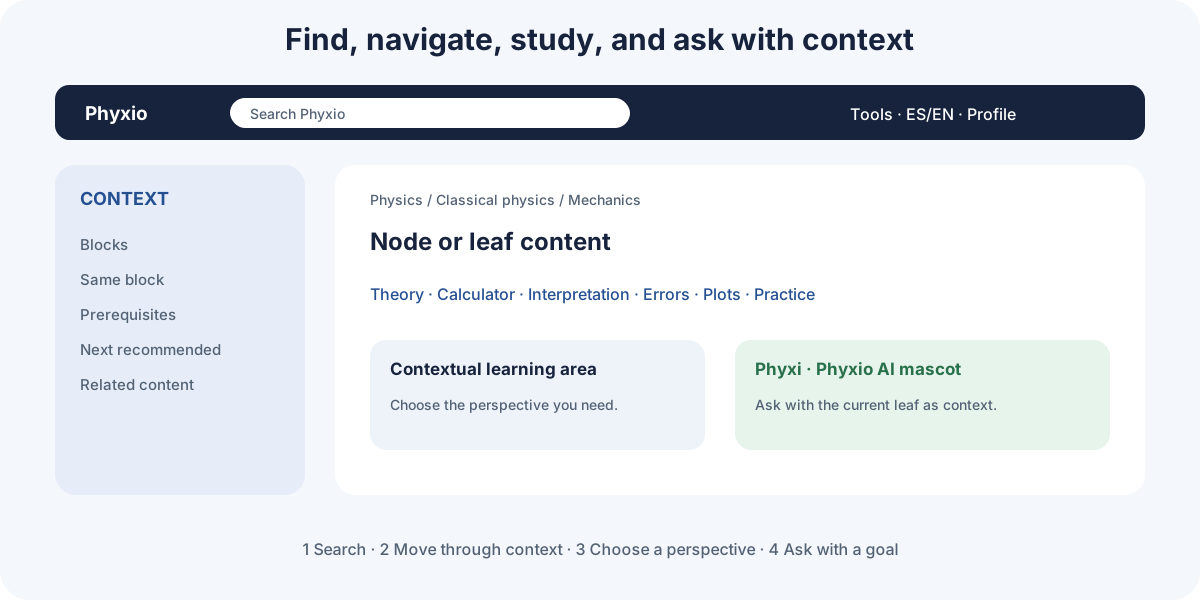
The screen that stays with you
| Element | Purpose |
|---|---|
| Phyxio logo | Returns to the home page. |
| Global search | Finds nodes, leaves, and content by name or term. |
| ES / EN | Changes the interface and available content language. |
| Sun / moon | Switches between light and dark mode. |
| User menu | Opens your profile, My room, and account options. |
| Sidebar | Shows content connections and access to tools. |
| Phyxi | The mascot and visual entry point to Phyxio AI. |
Three concepts before navigating
- A node groups related content in cards.
- A leaf is the page for one specific topic and contains its different tabs.
- A tab shows one perspective on the leaf: theory, calculator, interpretation, graphs, errors, or another available view.
Ways to begin
- If you know what you need, enter a term in global search.
- To explore the complete structure, open the topic map.
- To browse by area, start at the Phyxio home page and open its cards.
- To return to saved pages, enter My room.
Icons and options may change slightly with screen size, language, session, and available content, but their purpose remains the same.
What the remaining guide tabs cover
Map and nodes explains how to find and browse the syllabus. Inside a leaf describes all page regions. Tools documents global and topic-specific support. Phyxio AI (Phyxi) explains the contextual assistant. My room shows how to save and organize your path.
Map, nodes, and routes
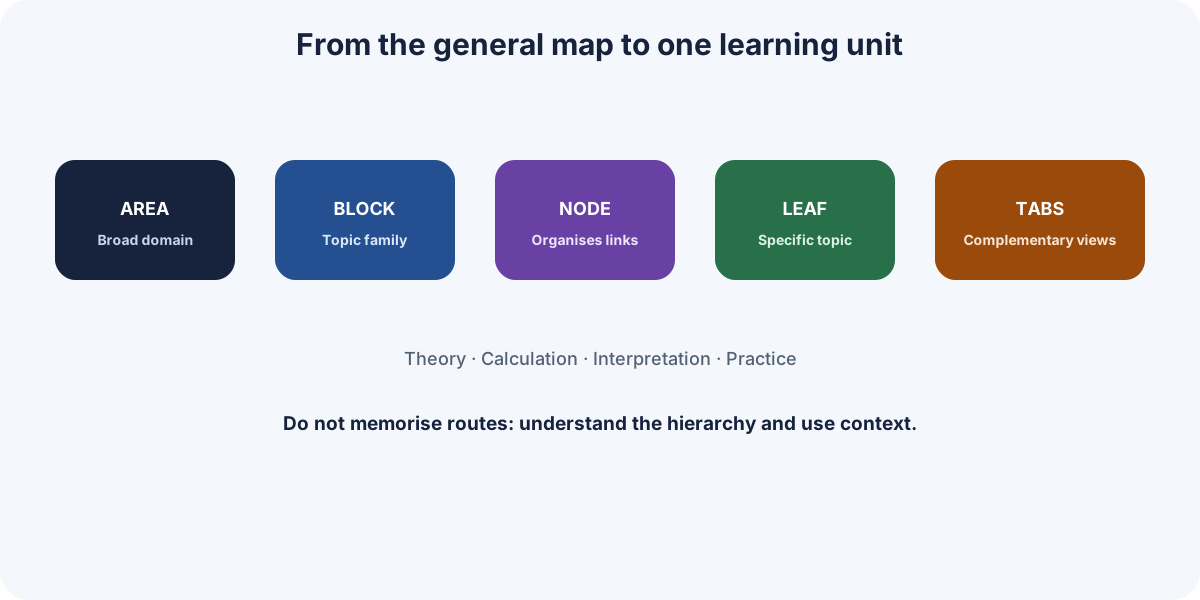
How the syllabus is organized
Phyxio starts with broad areas and divides them into increasingly specific nodes until reaching leaves. A typical path is Classical physics → Mechanics → Kinematics → Uniform rectilinear motion.
| Page | How to recognize it | What opening an item does |
|---|---|---|
| Home | Cards for the main areas | Enters the selected area. |
| Node | Short introduction, context tabs, and cards | Each card opens another node or a leaf. |
| Leaf | Its own header and content tabs | Each tab changes view without leaving the topic. |
| Map | Complete syllabus tree | Selecting a name opens that route directly. |
Elements on a node page
- Breadcrumbs above the content show your position. Each segment links back to that level.
- Node tabs summarize its general idea, aims, and connections. Select the text card to expand it and Show less to collapse it.
- Cards contain an icon, title, and possibly level badges: E (secondary), B (upper secondary), U (university), and X (extracurricular).
- The star saves the node to Favorites.
- When a curriculum is active, the selector can filter the syllabus. Extension content is dimmed or marked as basic or outside the curriculum.
Four ways to reach content
- Global search: enter a term, name, quantity, or formula and select the relevant result.
- Topic map: open the complete map when you need to see branches and relationships.
- Cards: move from an area towards increasingly focused content.
- Contextual sidebar: use Blocks, Same block, Prerequisites, Next recommended, or Related to change route without returning home.
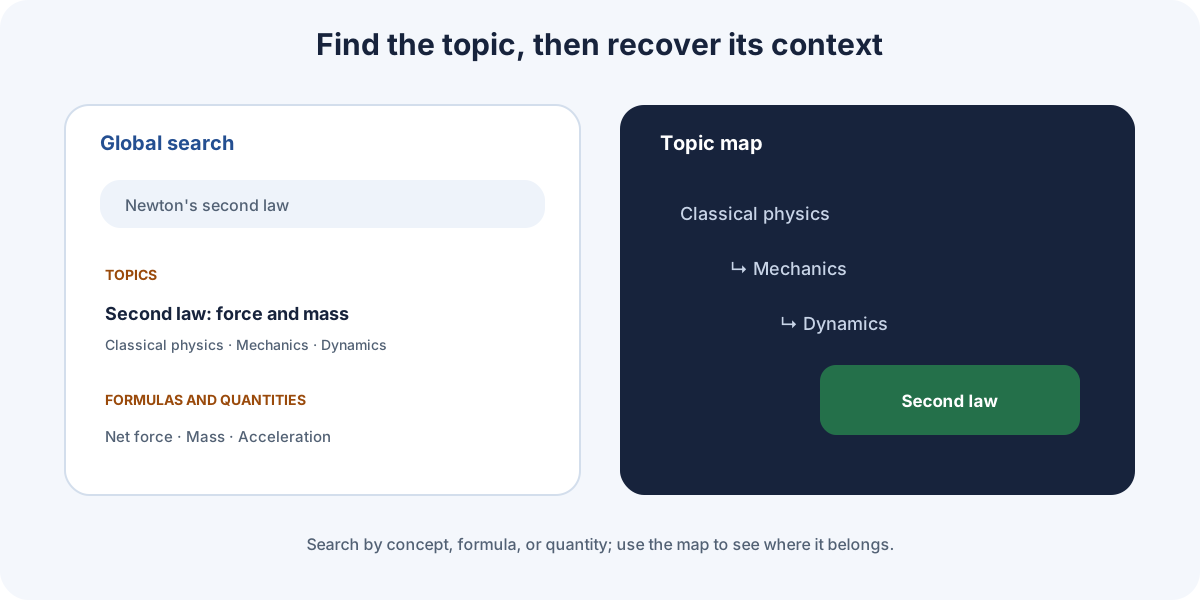
Return without getting lost
Use breadcrumbs to move up the hierarchy and Back to previous topic for the immediate parent. The browser Back button restores the previous page in your history, which may not be the parent node.
If you cannot find something
- Try the full concept and then a broader keyword.
- Open the map and first locate the relevant physics area.
- Inspect Prerequisites or Related in the sidebar.
- If a card is dimmed, check the active curriculum: it may belong to a different level and only show as a preview.
What you will find inside a leaf
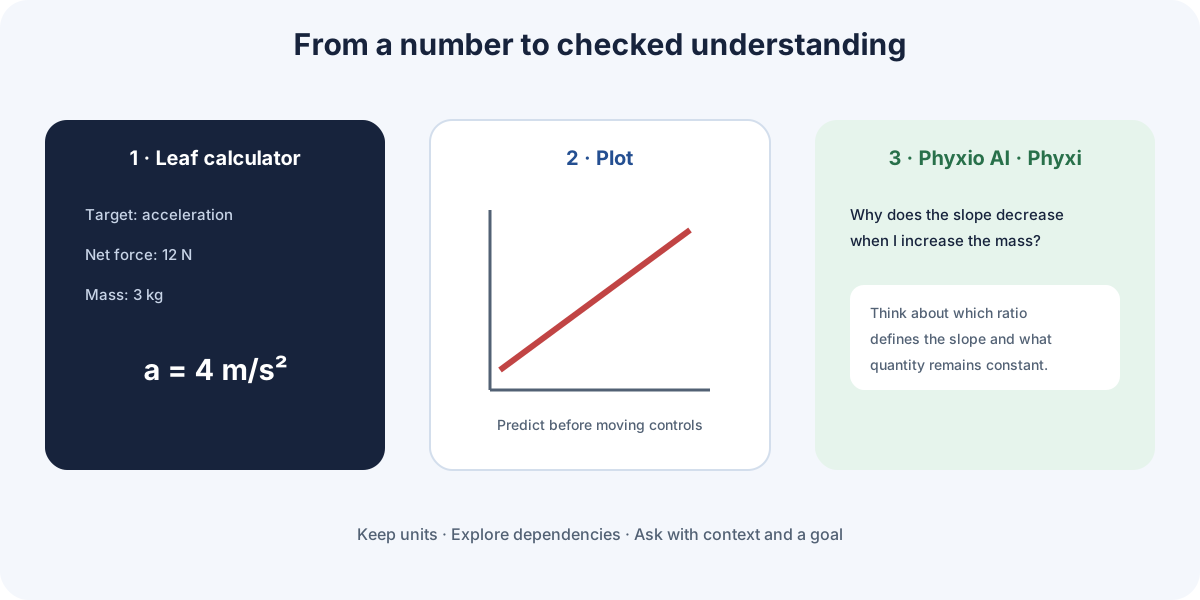
A leaf brings together every available perspective on one specific topic. Newton's second law is used here as a visual example, but the general layout is repeated throughout Phyxio.
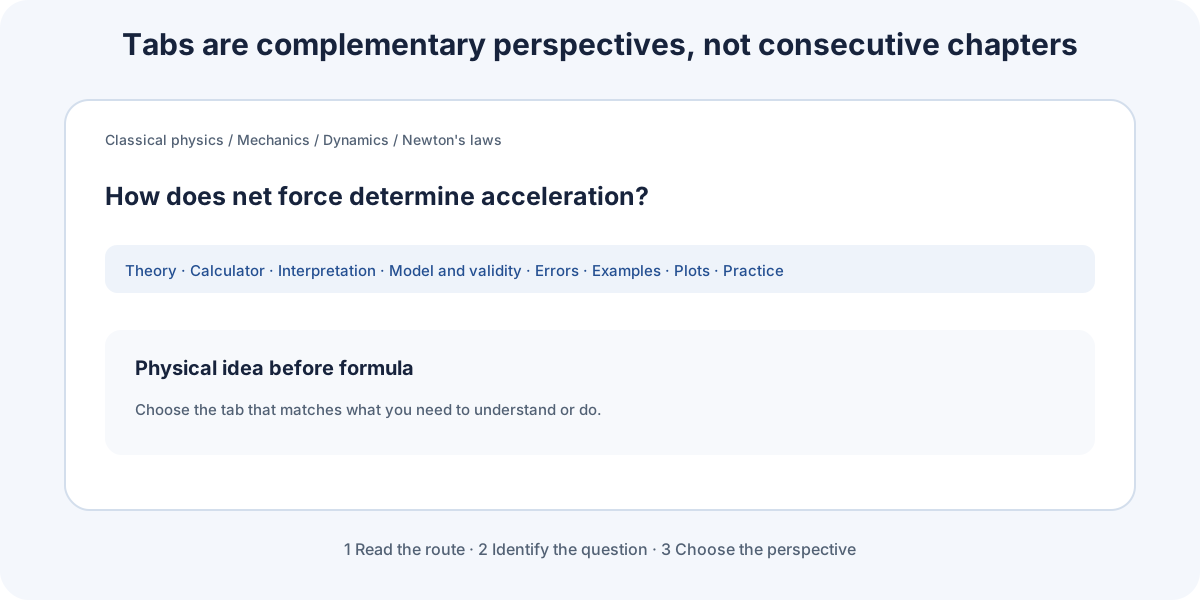
Header and context
The breadcrumb trail shows your position in the map and lets you return to any parent node. The title identifies the leaf; the star saves it to My room, and the completion control lets you record your own progress.
Content tabs
Tabs split the topic into complementary views. Theory explains the model; Formulas collects its mathematical relationships; Interpretation connects symbols with physical meaning; Validity states assumptions and limits; Errors warns about common mistakes; and Examples shows the model in use. The exact tabs depend on the leaf.
Calculator and graphs
The leaf calculator uses the variables and equations of the current topic. Enter known quantities, keep their units visible, and choose the unknown. Compatible graphs let you change parameters and see how the physical relationship responds.
Interpretation, model, and checks
A numerical answer is not the end of the process. Check its units, sign, scale, trend, and limiting cases. Use the interpretation and validity tabs to decide whether the result makes physical sense and whether the model applies.
Practice and progress
Practice is available when you want to apply the topic, but it is separate from this guide. Opening a leaf records a visit in your personal room; only you decide when to mark it as completed.
Support tools
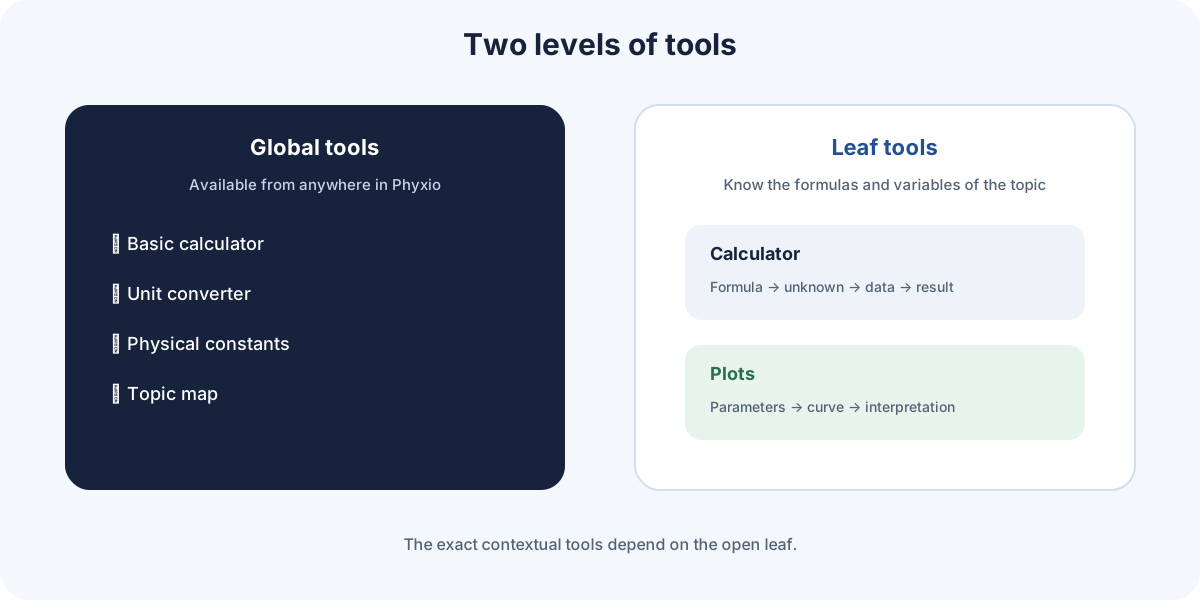
Global tools open from the tools button in the sidebar and from their own pages. You can consult them without losing the syllabus context.
Choose the right tool
| If you need to… | Open… | Direct access |
|---|---|---|
| perform a quick operation | Basic calculator | Open calculator |
| convert a quantity | Unit converter | Open converter |
| look up a physical value | Constants | Open constants |
| see where a topic belongs | Topic map | Open map |
| solve a topic relationship | Leaf calculator | Calculator tab in the leaf |
| explore how a relationship changes | Leaf graphs | Graphs tab in the leaf |
Basic calculator
Use it for topic-independent arithmetic, powers, roots, supported functions, and mathematical constants. Enter an expression, calculate, and use its history to reuse results. Choose it when you already know the operation; if you still need to choose the physical law, begin in the relevant leaf.
Unit converter
Select the quantity, source unit, and destination unit, then enter the value. Convert data before substitution when units are incompatible. Keep the unit beside every number so meters are not mixed with centimeters or seconds with hours.
Constants
Browse physical constants by category and inspect their symbol, value, and SI unit. Use them as references and check whether the model requires particular conditions or precision; a constant does not replace model selection.
Topic map
The map shows the complete Phyxio structure. Expand branches to discover nearby content and select an item to open it. It is particularly useful for finding prerequisites, distinguishing similarly named areas, and recovering context after search.
Leaf calculator
It is linked to the topic formulas. Choose a formula and unknown, then enter known data with units. Some formulas are reference-only or restricted; read all warnings and result explanations. Compatible graphs can share these values.
Leaf graphs
Change parameters to observe trends, slopes, extrema, and limiting cases. A graph supports interpretation but does not by itself prove that a model applies. Compare it with the Interpretation and Models tabs.
Quick check for any result
- Verify dimensions and final unit.
- Check the sign and its physical meaning.
- Estimate the order of magnitude.
- Test a simple or limiting case.
- Change one input and confirm that the trend matches the graph.
A global tool answers “what operation should I perform?” A leaf tool answers “how does this physical relationship behave?”
Phyxio AI and its mascot Phyxi
Phyxio AI is the platform's artificial-intelligence assistant. Phyxi is its mascot and the short name shown in some buttons, icons, and illustrations. Both names refer to the same assistant.
How to open it
Select the floating Phyxi button, usually placed in a corner of the screen. A conversation panel opens over the current page; close it to recover the full workspace without leaving the content.
Context it can use
When opened from a leaf, Phyxio AI can orient its answer using the current topic and active tab, available formulas, and, in compatible integrations, calculator or graph state. Asking from the relevant page is therefore usually more useful than asking without context.
Useful ways to ask
| Goal | Example request |
|---|---|
| Clarify an idea | “Explain what this slope represents physically.” |
| Request another explanation | “Rephrase this section with an analogy without losing precision.” |
| Obtain a hint | “Do not solve the exercise; help me choose the physical principle.” |
| Review a calculation | “Check the units, sign, and order of magnitude of my result.” |
| Understand a graph | “Which parameter controls the curvature, and why?” |
| Compare models | “Which assumption changes between these two models?” |
Add missing context
State what you want to understand, what you have tried, all data with units, and the exact point where you became unsure. Explicitly say when you want a hint instead of a full solution. A precise question produces a shorter, more relevant answer.
What to do with the answer
Phyxio AI is a support tool, not an infallible source. Compare its answer with the leaf and check dimensional consistency, sign and direction, order of magnitude, assumptions and validity range, and simple or limiting cases.
If an answer does not fit, identify the contradictory part and ask it to justify that step. Do not continue a calculation from a premise you have not verified.
Your personal space
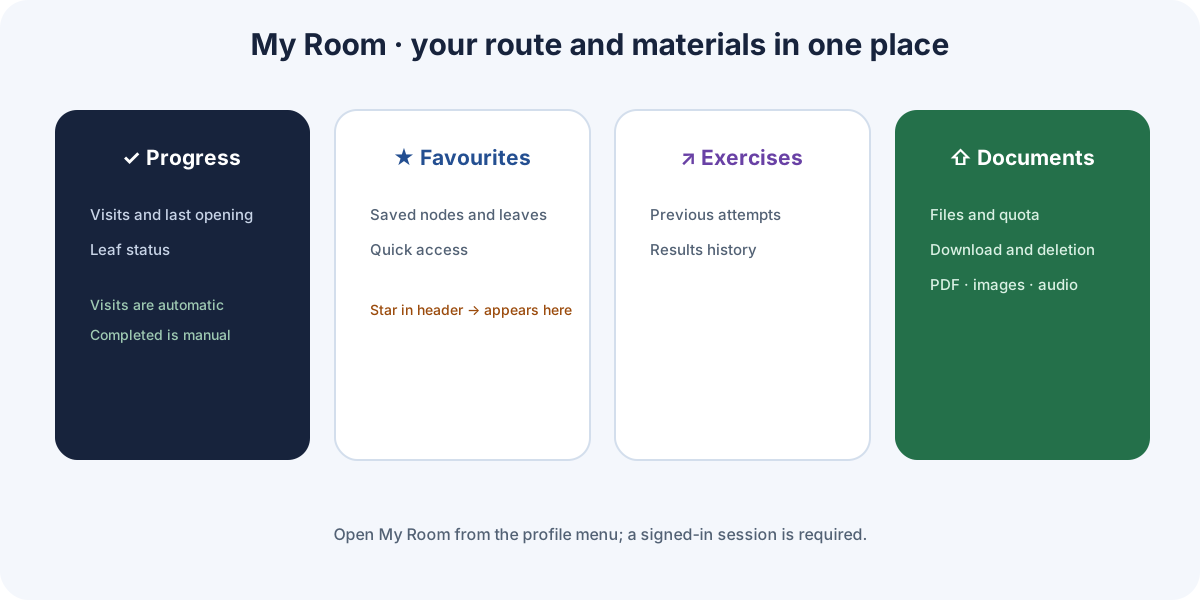
My room brings together what you want to keep and your activity trail. Open it from the user menu in the top bar—or use this direct link; you must be signed in.
Save nodes and leaves
The header of every node and leaf contains a star. Select Add to favorites to save that page. From Favorites you can return directly to it, identify it by name and icon, or remove it when you no longer need it.
Saving does not mark an item as completed. Favorites are shortcuts for pages you use frequently or want to revisit.
Leaf progress
When you open a leaf while signed in, Phyxio records the visit automatically. Your room shows visits, the last visit date, and each leaf's status. Mark as completed is always manual: use it when you decide that you have finished working with that content.
Exercise results
The Exercises section opens your history of completed and scored exercises. It helps you recover earlier attempts and locate topics to revisit; it is not part of this guide and is not required to use Phyxio.
My documents
You can keep related study material: PDF (.pdf), images (.jpg, .png), audio (.mp3, .wav, .m4a, .ogg), and presentations (.pptx). Your room displays used and available storage and lets you download or delete each file. For compatible images, Phyxio can extract text with in-browser OCR so you can review it before uploading.
A simple organization system
- Use Favorites as shortcuts to current topics, frequent references, or pages to revisit.
- Use Completed only as a personal status, not as a judgment of mastery.
- Use My documents for notes, lab sheets, datasets, or supporting material.
- Remove favorites and documents you no longer need to keep the room clear.
What each status means
| Status | How it is created | Purpose |
|---|---|---|
| Favorite | You select the star on a node or leaf | Creates a shortcut. |
| Visited | You open a leaf while signed in | Records your recent path. |
| Completed | You mark it manually | Records your own decision to close the topic. |
These states are independent: a leaf can be saved without being completed, completed without being a favorite, or removed from favorites without deleting its visit history.