Simulations
A visual guide to controlling, experimenting with, and interpreting interactive physics simulations.
What a simulation is
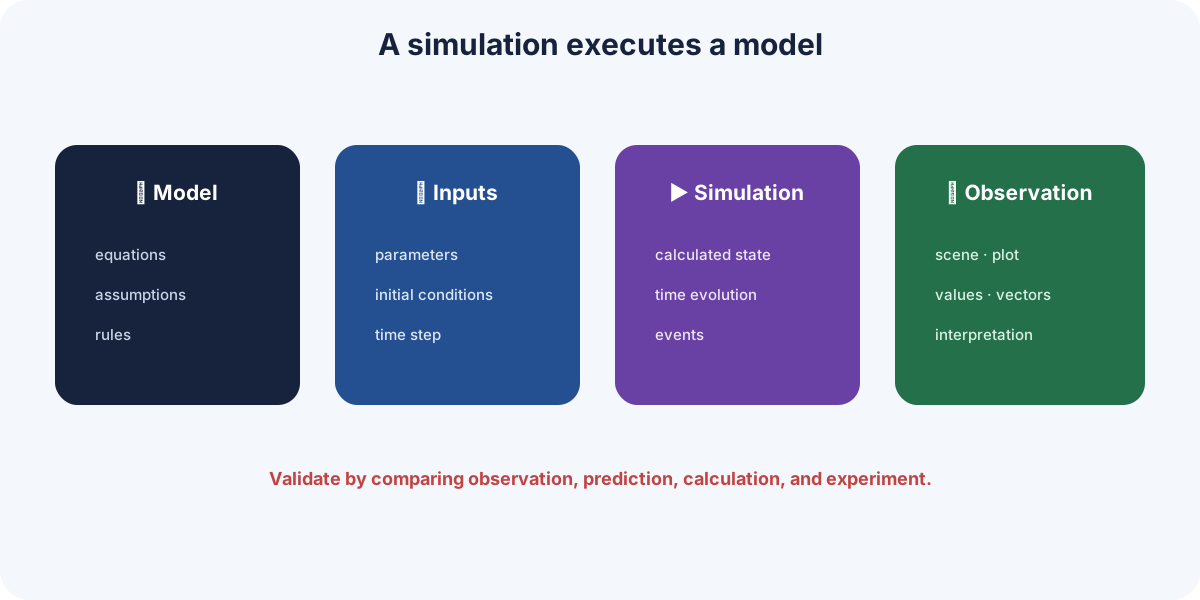
A simulation runs a model to show how a system evolves as time, initial conditions, or parameters change. It is not a video with a predetermined answer: its state is calculated from implemented rules.
Where simulations run in Phyxio
Phyxio does not currently provide a universal simulator in which any model can be written or uploaded. Simulations are embedded in leaves that implement an animated model.
To run one:
- open the leaf for the phenomenon you want to study;
- open Graphs;
- select the SVG view, when available;
- look for Play/Pause and Reset;
- use Experiment to change the parameters supported by that model.
Not every leaf includes a simulation. If a leaf has no animated SVG view or time controls, that model cannot be simulated on that page. Coord, SVG, or FBD views may still aid understanding, but a static graph is not a simulation by itself.
To learn how numerical models are built and analyzed, see Computational physics → Applied physical simulation and Computational physics → Statistical simulation. Those sections explain the methods; their presence does not mean that Phyxio can run an arbitrary model.
Simulation, graph, and reality
| Element | What it represents |
|---|---|
| Model | Equations, assumptions, and implemented rules. |
| Simulation | Calculated model evolution for particular inputs. |
| Graph | A representation of variables or results. |
| Real experiment | Measured behavior of the physical system. |
A simulation may include graphs, SVG scenes, vectors, or FBDs, but these are views of simulated state. A visually realistic animation does not guarantee that the model includes every real effect.
When it is useful
- observing processes that are too fast, slow, large, or small;
- isolating one variable while holding others fixed;
- comparing initial conditions;
- exploring limiting or difficult-to-reproduce cases;
- connecting equations with visible evolution.
The right question is not only “what happens?” but “what happens in this model under these conditions?”
Simulation interface and state
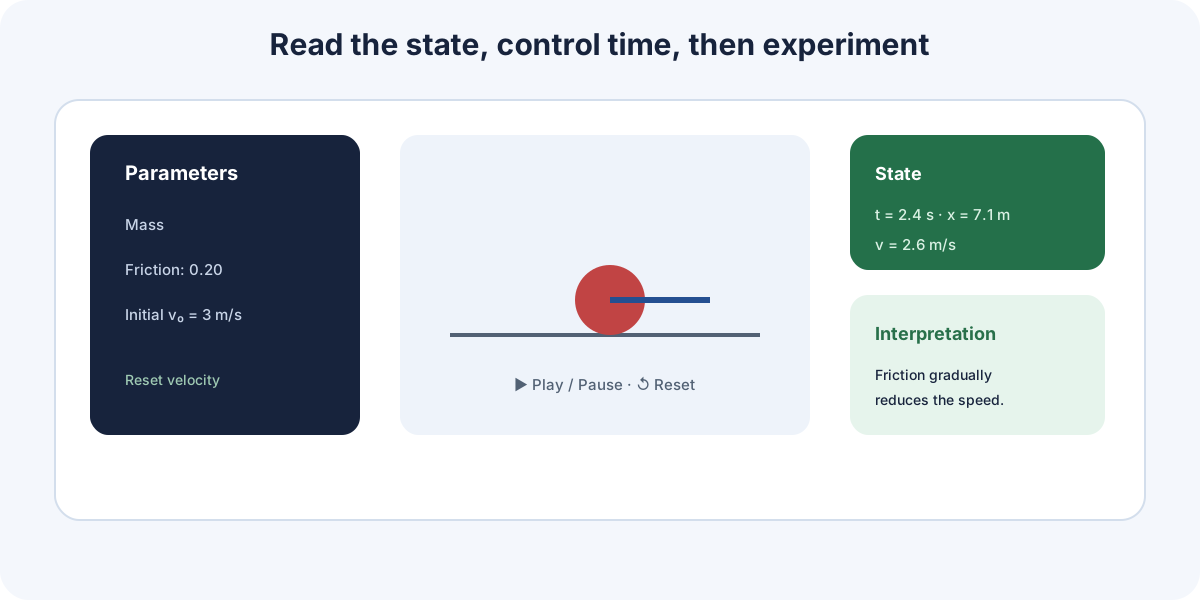
Layout depends on the model. In Phyxio, a simulation usually appears as an animated SVG scene with playback controls and, when supported by the model, parameters and indicators.
Controls you may find
| Control | Purpose |
|---|---|
| Start / Pause | Advances or stops time evolution. |
| Reset | Restores initial conditions. |
| Parameters | Changes model or system properties. |
| Initial conditions | Defines the state from which evolution begins. |
| View | Changes representation without necessarily changing the model. |
Play/Pause and Reset are the controls provided by animated SVG scenes. Everything else depends on the leaf and its implemented model: do not assume that every simulation allows the same quantities to be changed.
Read state before starting
Identify objects, reference frame, axes, units, fixed parameters, and initial conditions. Check whether the simulation is paused, running, or finished and which instant it represents.
Reset is not undo
Reset commonly restores the initial state defined by current controls. If a parameter has changed, check whether it remains after reset. Use defaults when the complete reference scenario must be recovered.
Experimenting with a simulation
Experimenting means forming a controlled comparison, not moving every control until the animation looks interesting.
Exploration method
- Define the result to observe.
- Record initial state and parameters.
- Choose one independent variable.
- Predict the effect of increasing or reducing it.
- Run the reference scenario.
- Reset, change only that variable, and repeat.
- Compare values, evolution, graph, and interpretation.
Holding variables constant
Variables not under study must keep the same value. If mass, force, and friction change simultaneously, the result cannot be assigned to one cause.
Comparing scenarios
Use recognizable changes: double, halve, set to zero, or approach a limit. Avoid differences so small that visual or temporal resolution hides them.
Prediction before running
State a qualitative prediction: increase, decrease, reverse, oscillate faster, or remain unchanged. An incorrect prediction is useful when the failed assumption is identified afterwards.
Experimenting is not about predicting correctly every time; it is about explaining the difference between two controlled states.
Time, steps, and measurements
A numerical simulation may combine physical model time, calculation step, and playback speed. They should not be confused. These concepts help interpret the model, although current animated Phyxio scenes do not always display or let you adjust all three.
Three time scales
- Physical time states how much time the system state represents.
- Time step determines how often the calculation updates.
- Playback speed determines how quickly the animation is displayed.
Increasing playback speed usually does not change the physics; making the calculation step too large can reduce accuracy or alter numerical stability.
Pause and observe
Pause near the event you want to inspect. If a future or specialized view provides discrete stepping, use it to study small changes; do not expect that control in every scene. Read values at the same instant and avoid comparing variables taken at different times.
Measuring in the simulation
Use numerical indicators, cursors, selected points, and associated graphs. A position estimated from the animation is less precise than a numerical state value.
Visual resolution
An object that looks stationary does not necessarily have exactly zero velocity. The change may be below one pixel or too fast to distinguish. Inspect values and the time scale.
Model, approximation, and limits
Every simulation omits part of reality. It may neglect friction, size, losses, noise, relativity, environmental interaction, or other effects to isolate the phenomenon under study.
What to identify
- included system and environment;
- calculated quantities;
- fixed parameters;
- initial and boundary conditions;
- simplifying assumptions;
- permitted value domain;
- stopping criterion.
Visual and physical realism
Shadows, perspective, and smooth animation improve readability but add no physics to the model. Conversely, a simple diagram may represent the relevant relationship very accurately.
Out-of-range results
Extreme values may reveal mathematical trends while violating assumptions. If a simulation permits zero mass, enormous speed, or negative length, treat the state as model exploration and inspect its warnings.
Numerical error
Some simulations approximate continuous evolution with discrete steps. If the result changes substantially when the time step is reduced, convergence is not yet sufficient for a stable result.
Interpreting and validating a simulation
Interpretation must connect observations with variables, model, and scenario conditions.
Questions for reading the result
- Which initial state was used?
- Which variable changed and which remained fixed?
- Which observed quantity changed?
- Does the trend agree with the equation or physical principle?
- Can conservation, equilibrium, or symmetry be checked?
- Does the state remain inside the model domain?
Internal validation
Check units, signs, limiting cases, conservation, and repeatability under identical conditions. Compare complementary views—scene, Coord graph, SVG, or FBD—when available.
External validation
Compare against an analytical solution, rough calculation, experimental data, or known case. Agreement with another view generated by the same simulation is not independent validation.
Phyxio AI
Pause at the relevant instant and state the changed parameter, values, and observation. Ask it to connect behavior with the equation and assumptions, then perform an independent check.
A simulation supports reasoning about a model; validation determines how far the conclusion can be trusted.