Graphs
A visual guide to controlling, reading, and checking interactive leaf graphs.
Three graph types
Phyxio uses three representation systems: Coord, SVG, and DCL/FBD. They are not three mandatory versions of the same picture; each addresses a different physical need.
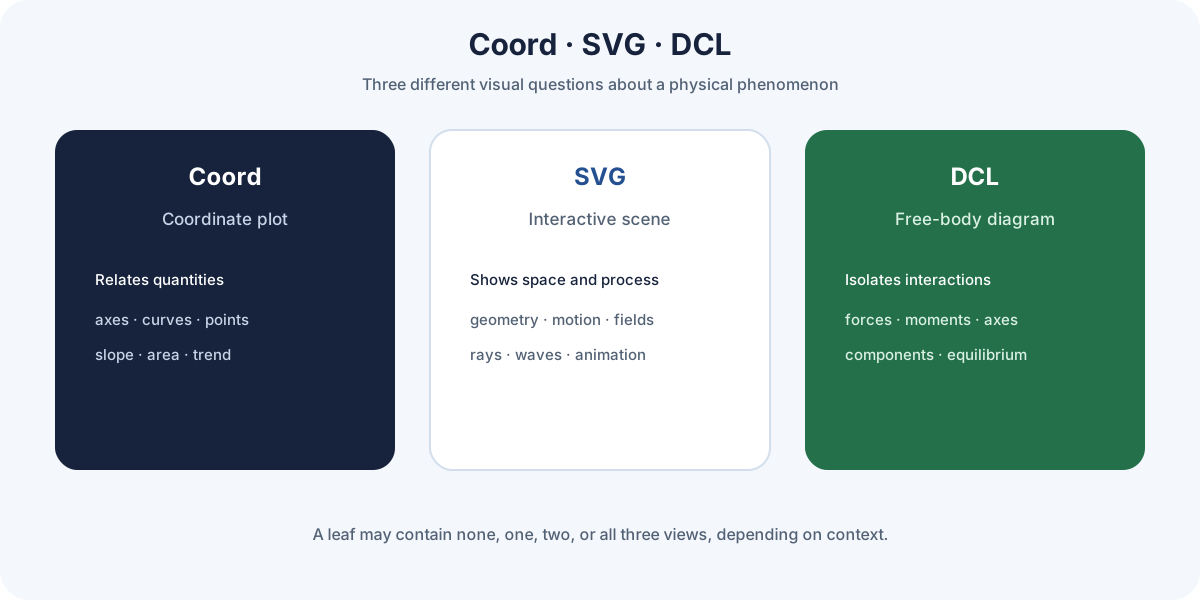
Coord · Coordinate graph
Shows relationships between quantities through axes, curves, points, or series. It is suited to dependencies, slopes, areas, extrema, time evolution, and value comparisons.
Common examples include position against time, force against extension, statistical distributions, and model-to-data comparisons.
SVG · Interactive scene or diagram
Shows geometry, motion, components, fields, rays, waves, apparatus, or processes through a vector illustration. It communicates spatial and animated aspects that a Cartesian plot may not show well.
Common examples include trajectories, wave propagation, optical setups, field lines, and system geometry.
DCL/FBD · Free-body diagram
This vector view is designed for forces, moments, components, axes, and equilibrium or motion conditions. It helps identify active interactions, their direction, and the sign convention.
Common examples include blocks on inclined planes, tensions, normal force, friction, weight, equilibrium, and multi-body systems.
What may appear in each leaf
Availability depends on the topic context:
- no graph, when an interactive representation is not useful or is not yet available;
- one type, when one representation is clearly appropriate;
- two types, when two complementary readings are needed;
- all three, when Coord, SVG, and DCL/FBD provide different information about the same phenomenon.
If a leaf has no associated graphs, the interface reports this and the Graphs tab may be absent. When several views exist, a selector displays labels such as Coordinates, SVG, and Vector (FBD). Changing view does not change the topic; it changes the visual question being asked.
Regions shared by a view
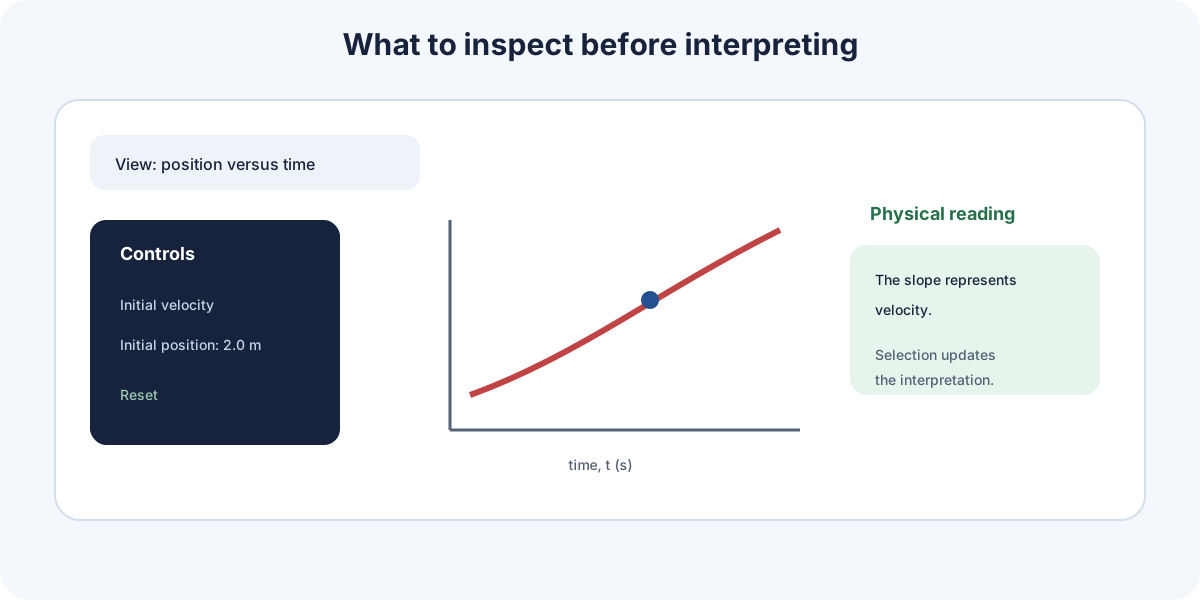
| Region | Purpose |
|---|---|
| View selector | Switches between Coord, SVG, and DCL/FBD when available. |
| Control panel | Changes parameters, conditions, or variables. |
| Display area | Draws curves, scenes, objects, or vectors. |
| Legend | Identifies series, colors, quantities, or forces. |
| Physical reading | Explains axes, slope, area, sign, geometry, or equilibrium. |
| Warnings | Flags domains, limits, or invalid states. |
Before interpreting, identify the graph type and the aspect of the phenomenon it is intended to show.
Axes, units, and scales
The horizontal axis often represents the independent variable and the vertical axis the observed quantity, but this is a convention rather than a universal physical rule. Always confirm the labels.
Read axes correctly
- Record the quantity and unit on each axis.
- Check whether the origin is visible or the axis begins elsewhere.
- Identify linear, logarithmic, or normalized scales.
- Notice factors such as
×10³or prefixes in labels. - Do not visually compare slopes between plots with different scales.
Displayed domain
A curve only shows the plotted interval. A trend that holds in that window may not continue outside it. Consult Models and validity for the physical domain rather than relying only on axis limits.
Truncation and proportions
A truncated axis can make a small variation look enormous. A different aspect ratio can change visual inclination without changing numerical slope. Use values and units, not geometry alone.
Using controls
Controls depend on the leaf and may include sliders, numerical fields, selectors, switches, reset buttons, or selectable elements inside the graph.
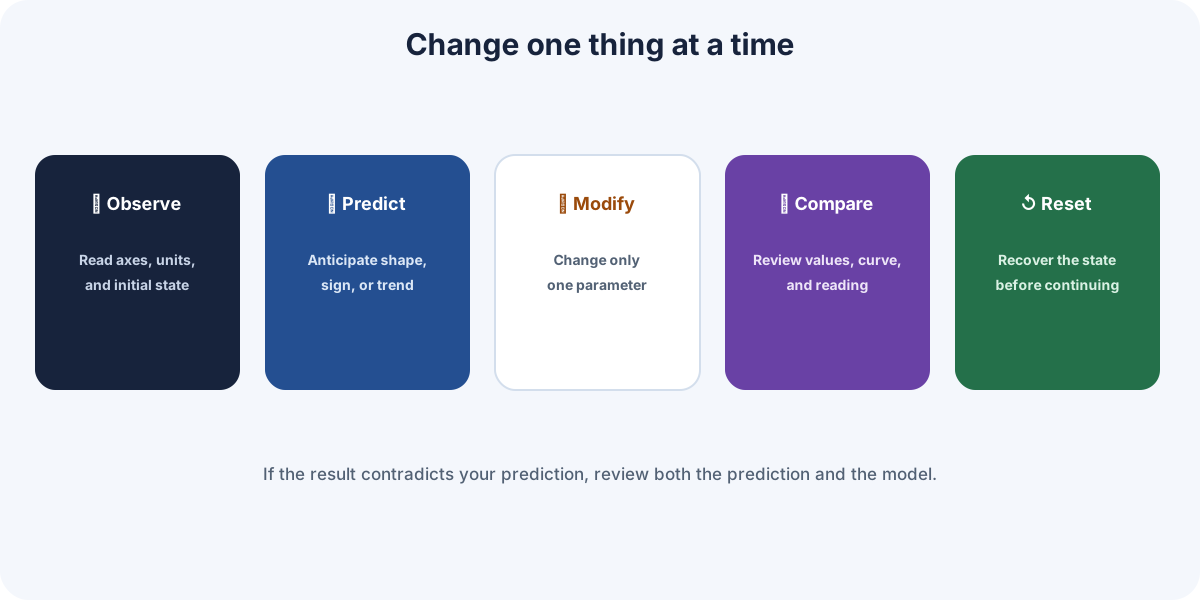
Change one thing at a time
- Observe the initial state.
- Choose one parameter.
- Predict what should change.
- Modify it by a recognizable amount.
- Compare shape, values, and physical reading.
- Reset before studying another parameter.
This procedure assigns the observed effect to a cause. Changing several quantities simultaneously may show a combined result without revealing which produced each change.
Selection and state
Some views let you select a point, object, or vector. The reading card and Phyxio AI can use compatible state. Confirm which element is active before asking a question or copying a value.
Extreme values
Controls may permit mathematically calculable but physically unrealistic states. Extremes are useful for trends as long as mathematical exploration is not confused with model validity.
Extracting physical meaning
A curve gains meaning by relating its shape to the axis quantities and model.
Graph interpretation
A physical reading card appears below or beside the representation when interpretive information is available. It does more than describe the drawing: it can explain axes, slope, area, curvature, sign, domain, and connections with the model or formula.
The interpretation belongs to the active view. When switching between Coord, SVG, and DCL/FBD, choosing another view, or changing a compatible selection, read it again because the physical question may also have changed. On some graphs, selecting a point, object, or vector updates the interpretive context.
Use the card in this order:
- identify the represented quantities or elements;
- connect the shape or scene with the formula;
- interpret the selected state;
- review warnings and validity domain;
- compare the explanation with what happens when a control changes.
What each feature may represent
| Feature | Possible reading |
|---|---|
| Point value | System state for a particular input. |
| Slope | Rate of change of the vertical quantity with respect to the horizontal one. |
| Intercept | Initial value, reference, or independent term. |
| Curvature | Changing slope and nonlinear behavior. |
| Area under the curve | Accumulation, only when axis product and model support that meaning. |
| Maximum or minimum | Local extremum, equilibrium, or limit, depending on the problem. |
| Discontinuity | Regime change, singularity, or model boundary. |
These interpretations are not automatic. Area, for example, represents a physical quantity only when its dimensions and theoretical relationship justify it.
Sign and direction
A region below the axis does not necessarily mean an everyday “negative amount.” It may represent opposite direction, decrease, negative work, or a reference convention. Read the quantity definition.
Curve and data
Distinguish a theoretical function from measured or simulated points. Points may show scatter and uncertainty; a line may be a model or fit rather than a literal path between observations.
Calculator, graph, and Experiment mode
When a leaf supports the connection, calculator and graph share variables. The calculator obtains a result for one dataset; the graph locates that state and explores what happens as variables change.
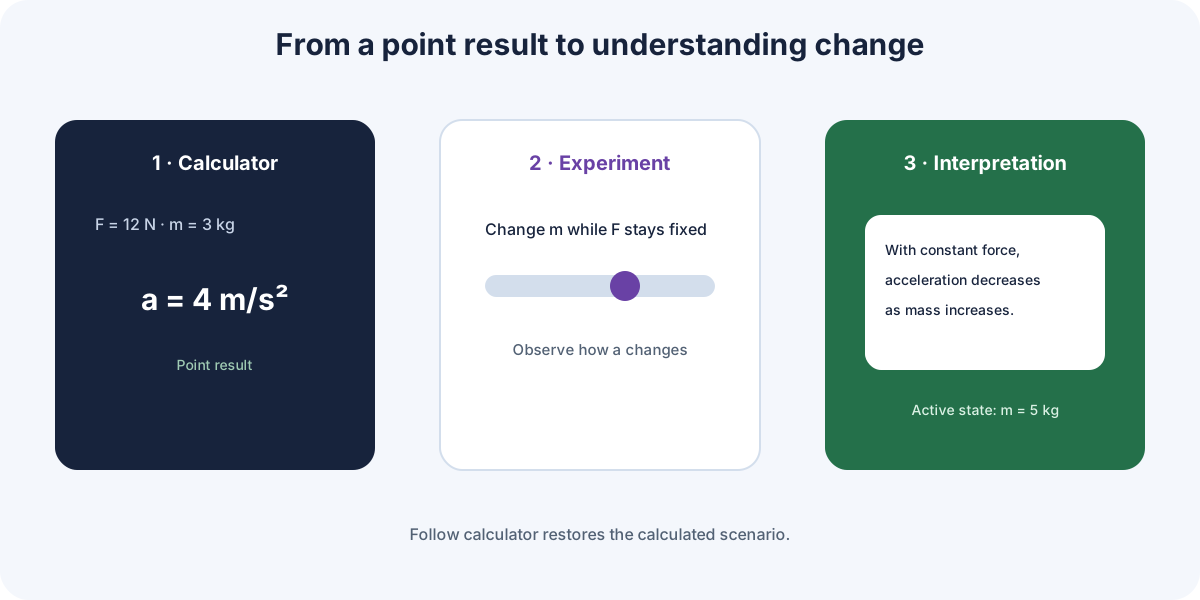
Follow calculator
Follow calculator uses the formula, unknown, and known values from the latest compatible calculation. It lets you:
- represent the scenario just calculated;
- locate the result on a curve, scene, or diagram;
- check whether the point follows the general trend;
- read its physical interpretation in the same context.
When calculator inputs change and a new result is produced, a compatible graph receives the new state. The number and representation therefore describe the same variable set.
Experiment mode
Experiment lets you modify graph controls independently of the latest calculator result. Its purpose is exploration rather than producing one final answer.
To use it instructively:
- observe initial values and interpretation;
- choose one variable and predict the change;
- modify only that variable;
- observe changes in the result, shape, scene, or vectors;
- read the interpretation again;
- try a smaller value, a larger value, and a limiting case;
- reset before studying another variable.
What “holding constant” means
Other variables must remain fixed if the observed change is to be attributed to the selected variable. When studying acceleration against mass, for example, hold force constant. Changing force and mass together may conceal the causal relationship.
Return to the calculated result
After experimenting, select Follow calculator again to restore the calculator-defined scenario. Always check the active mode before copying a value or asking Phyxio AI to interpret the graph.
The calculator answers “what is the result for these data?” Experiment answers “how does the system change when I modify one variable?”
Validating what a graph shows
A convincing representation may still be incorrect, incomplete, or irrelevant to the problem. Check both the drawing and the model.
Checklist
- Title, axes, units, and legend match the question.
- The plotted domain matches the physical domain.
- Fixed parameters have known values and units.
- The trend agrees with the formula or physical principle.
- Slope, area, and extrema are interpreted with correct dimensions.
- Limiting cases behave reasonably.
- Visual correlation is not confused with causation.
Common mistakes
- reading height when slope matters;
- comparing inclinations with different scales;
- extrapolating outside the shown interval;
- assigning physical meaning to a resolution artifact;
- ignoring which variable is held fixed;
- treating a smooth curve as proof of the model.
Asking for contextual help
Leave the graph in the state to be analyzed and ask Phyxio AI about the axes, selected variable, and specific feature. Then compare its explanation with the reading card, formula, and Models and validity.